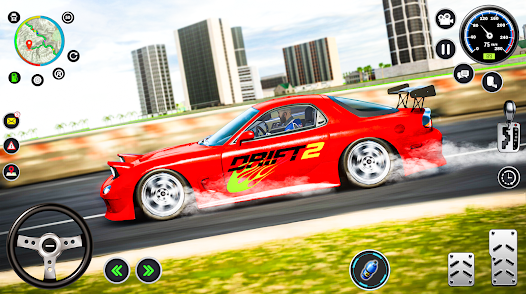
FR Legends is a super fun and stylish mobile drifting game that’s all about JDM culture, custom builds, and tandem drifting battles. It’s gained a huge fanbase thanks to its unique cel-shaded art style, deep car customization, and smooth physics.
Here’s a quick breakdown of what makes it awesome:
What is FR Legends?
FR = Front-engine, Rear-wheel-drive
It’s a drifting game where you drive iconic drift cars like the AE86, Nissan Silvia, RX-7, and more. You can customize everything, from liveries and wheels to engines and angle kits.
Core Features
Realistic Drifting Physics
-
Not a sim, but it feels great—perfect balance of arcade fun + drift challenge.
-
You get rewarded for style and angle, not just speed.
Car Customization
-
Swap engines (2JZ, SR20, rotary, etc.)
-
Widebody kits, bumpers, wings, exhausts, and custom wheels
-
Full livery editor — think Need for Speed: Underground vibes
Tandem Battles
-
Play solo or go up against AI in tandem drift battles.
-
Score based on proximity, angle, and line.
-
Even judge tandem runs manually!
Tracks
-
Real-world inspired drift circuits like Ebisu, Meihan, and touge-style mountain roads.
FR Legends on PC
As mentioned earlier, the game isn’t native to PC, but you can play it via Android emulators like:
-
BlueStacks
-
LDPlayer
-
MEmu
-
NoxPlayer
With these, you can enjoy smoother gameplay, custom controls, and even use a controller or steering wheel.
Mods & Community
The FR Legends modding scene is massive:
-
Custom cars like Supra, Lancer Evo, BMWs, etc.
-
Anime or realistic liveries
-
Fan-made maps
There are Discord servers and YouTube channels dedicated to mod tutorials and showcases.
Available On:
-
Android
-
iOS
You can also sideload modded APKs if you’re on Android (with caution).
How to Play FR Legends on PC
1. Choose an Android Emulator
To run FR Legends on your PC, you’ll need an Android emulator. Some of the most recommended options include:
-
BlueStacks: A widely-used emulator known for its performance and compatibility.
-
MEmu Play: Offers smooth gameplay with minimal system resource usage.
-
LDPlayer: Optimized for gaming with features like high FPS and keyboard mapping.
-
NoxPlayer: User-friendly and supports APK installations via drag-and-drop.
2. Install the Emulator
Download and install your chosen emulator from its official website. After installation, launch the emulator and sign in with your Google account to access the Play Store.
3. Install FR Legends
You have two options to install FR Legends:
-
Via Google Play Store:
-
Open the Play Store within the emulator.
-
Search for “FR Legends” and click “Install”.
-
-
Using an APK File:
-
Download the FR Legends APK from a trusted source.
-
Drag and drop the APK file into the emulator to initiate installation.
-
4. Launch and Configure the Game
Once installed, open FR Legends from the emulator’s home screen. Adjust the game settings to optimize performance and controls. Some emulators allow you to map keyboard keys or connect a game controller for a better experience.
Game Features on PC
-
Enhanced Graphics: Enjoy the game’s cel-shaded visuals on a larger screen.
-
Custom Controls: Utilize keyboard or controller inputs for precise drifting.
-
Extensive Customization: Modify your car with engine swaps, wide-body kits, and more.
-
Multiple Game Modes: Engage in solo runs, tandem battles, and other exciting modes.
Becoming the Drift Legend in FR Legends isn’t just about big angles and tire smoke—it’s about mastering the art of style, control, and car setup. Here’s your full breakdown to go from beginner to boss on the track:
How to Become the Drift Legend in FR Legends
1. Learn the Physics First
FR Legends isn’t about full-throttle chaos.
It rewards:
-
Clean lines
-
Smooth transitions
-
Consistent angle
Pro Tip: Tap the throttle—don’t hold it. Use your handbrake wisely to initiate or adjust mid-drift.
2. Set Up Your Car Right
Best Cars to Start With:
-
AE86 – Light, nimble, a little underpowered (but a great teacher)
-
S13/S14 – Balanced and easy to upgrade
-
RX-7 or BMW E30 (modded) – Powerful and stylish
Key Tuning Areas:
-
Angle Kit – More angle = smoother, more dramatic drifts
-
Suspension – Lower your ride and stiffen the suspension for stability
-
Tire Grip – Adjust for the track (less grip = easier slides)
-
Differential – 100% locked for consistent wheelspin
Engine swaps like 2JZ or SR20 are great, but master drifting first—don’t rely on power!
3. Practice on the Right Tracks
Best Tracks for Skill Growth:
-
Custom Track (Free Run) – Big and open for practicing transitions
-
Ebisu Minami – Technical with jumps and big angle zones
-
Touge – Tight corners, elevation, and real drift vibes
Set mini-challenges: nail the same corner five times, follow your own ghost, or try a no-brake run.
4. Master Tandem Drifting
Tandems are where legends are born. Here’s how to dominate:
-
Chase Mode: Stay close without touching. Mirror their line.
-
Lead Mode: Set a clean, aggressive line for others to follow.
Use replay mode to study your runs—where you lost angle, clipped the line, or braked too hard.
5. Style Is King
Real drift legends don’t just win—they look good doing it.
Customize:
-
Slam your car
-
Add a widebody kit
-
Create a unique livery (rep your name or crew!)
-
Use matching wheels + tire stickers
Bonus: Take cool screenshots for social media or Discord to show off your drift build.
6. Track Your Progress
-
Save replays and compare improvements
-
Post your runs online and ask for feedback
-
Join FR Legends Discord or Reddit for advice and battles
Final Tip: Legends Aren’t Born, They Slide Into It
It’s all about time, patience, and fun. Keep pushing your limits, experiment with different setups, and watch real-life drifting for inspo.
FR Legends on PC – FAQ
Here’s a handy FAQ (Frequently Asked Questions) section for playing FR Legends on PC:
1. Is FR Legends officially available on PC?
No, FR Legends is a mobile game, but you can play it on PC using Android emulators like BlueStacks, LDPlayer, MEmu, or NoxPlayer.
2. Is it free to play FR Legends on PC?
Yes, both the game and most Android emulators are free. However, the game may contain optional in-game purchases.
3. What are the system requirements to run FR Legends on PC?
Here’s a general minimum for smooth gameplay with an emulator:
-
OS: Windows 7/8/10/11 (64-bit)
-
Processor: Intel or AMD Processor
-
RAM: 4GB (8GB recommended)
-
Storage: 5GB free disk space
-
Graphics: OpenGL 2.0 or above
4. Can I use a controller or steering wheel?
Yes! Emulators like BlueStacks and LDPlayer allow you to connect a controller or even map keys for a steering wheel setup (though some setup might be needed).
5. Will my progress from mobile carry over to PC?
Only if you log in with the same Google Play/Game Center account in the emulator. Some data like car builds might not sync if cloud saving isn’t fully supported.
6. Is multiplayer or tandem drifting supported on PC?
Yes, just like on mobile. Once you’re in the game via the emulator, all the online features (like tandem drift battles) work the same.
7. Can I install car mods on the PC version?
Yes! Many players use modded APKs to install custom cars, liveries, or tracks. Just be cautious:
-
Only download mods from trusted sources.
-
Backup your data before installing any APK.
8. Will playing on emulator get me banned?
Unlikely. FR Legends doesn’t currently penalize emulator use, as it’s primarily a single-player/customization game.
Is it free to play FR Legends on PC?
Yes! The game itself is free, and most Android emulators are also free to use. Some may offer premium features, but you don’t need them to play FR Legends.
Which emulator works best?
It depends on your PC specs, but here’s a quick breakdown:
-
BlueStacks – Great for high-end PCs, tons of features.
-
MEmu Play – Light and fast, good for lower-end PCs.
-
LDPlayer – Optimized for gaming with high FPS and smooth controls.
-
NoxPlayer – Very user-friendly with easy APK installs.
Can I use a controller or steering wheel?
Yes! Many emulators support controller mapping, and some even allow steering wheel integration with a bit of setup. Check your emulator’s input settings.
Can I map keyboard keys to control the car?
Absolutely. All emulators have key-mapping features, letting you assign keyboard buttons to accelerate, drift, steer, and use the handbrake.
Do mods or custom liveries work on PC?
Yes, if you know how to access the emulator’s file system, you can import mods, custom cars, and liveries just like on Android. It’s a bit technical, but very possible.
Will I be able to play online or sync my progress?
Yes, as long as you’re signed in with the same Google account, cloud save (if supported by the game version) should sync across devices. For online battles or tandem drifts, just connect to the internet like normal.
Let me know if you want help picking the best emulator or want links to modding tools!