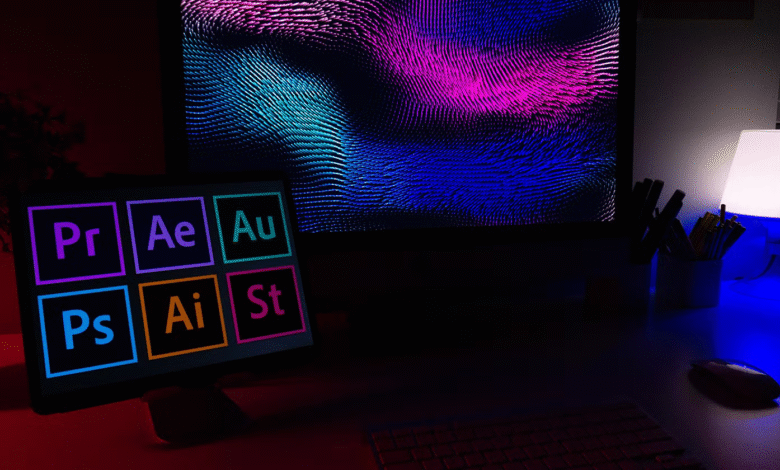
Adobe Creative Cloud is a powerful suite, but its subscription-based model and cost can be a barrier for many freelancers, students, and small teams. Fortunately, there are impressive alternatives that offer creative tools for graphic design, video editing, photo manipulation, and more—often at a one-time cost or even free.
What is Adobe Creative Cloud?
Adobe Creative Cloud is a subscription-based suite of software applications and services developed by Adobe Systems, primarily used by graphic designers, video editors, photographers, web developers, and creative professionals.
10 Best Adobe Creative Cloud Alternatives
Below is a detailed guide to the 10 best Adobe Creative Cloud alternatives you should consider in 2025.
1. Affinity Suite (Affinity Photo, Designer, Publisher)
Best For: Professional designers seeking Adobe-quality tools with no subscription.
-
Tools Covered: Photoshop (Affinity Photo), Illustrator (Affinity Designer), InDesign (Affinity Publisher)
-
Key Features:
-
One-time purchase pricing
-
Full PSD/AI compatibility
-
Fast, smooth performance
-
-
Platforms: Windows, macOS, iPad
-
Pros: Affordable, professional-grade tools
-
Cons: No video editing or animation tools
2. Canva Pro
Best For: Beginners, marketers, and social media creators.
-
Tools Covered: Photoshop, InDesign (basic design tasks)
-
Key Features:
-
Drag-and-drop design tools
-
Extensive templates and stock media
-
Team collaboration support
-
-
Platforms: Web, Android, iOS
-
Pros: Easy to use, fast results
-
Cons: Limited advanced design features
3. DaVinci Resolve
Best For: Professional video editors and filmmakers.
-
Tools Covered: Premiere Pro, After Effects, Audition
-
Key Features:
-
High-end video editing and color grading
-
Fusion (motion graphics and VFX)
-
Fairlight (professional audio)
-
-
Platforms: Windows, macOS, Linux
-
Pros: Free version is powerful; Studio version is one-time purchase
-
Cons: Steeper learning curve
4. GIMP (GNU Image Manipulation Program)
Best For: Photo editing enthusiasts and developers.
-
Tools Covered: Photoshop
-
Key Features:
-
Open-source raster graphics editor
-
Extensive plugin support
-
Customizable UI
-
-
Platforms: Windows, macOS, Linux
-
Pros: Free, highly customizable
-
Cons: Lacks CMYK support and some pro features
5. Inkscape
Best For: Vector illustrators and designers on a budget.
-
Tools Covered: Adobe Illustrator
-
Key Features:
-
Open-source vector graphics editor
-
SVG-native format
-
Bezier tools, gradients, and node editing
-
-
Platforms: Windows, macOS, Linux
-
Pros: Free and open-source
-
Cons: UI less refined than Illustrator
6. Krita
Best For: Digital painting, concept art, and illustration.
-
Tools Covered: Photoshop (for painting)
-
Key Features:
-
Brush engines tailored for painting
-
Animation support
-
PSD support
-
-
Platforms: Windows, macOS, Linux
-
Pros: Free, excellent brush customization
-
Cons: Not suitable for photo editing or DTP
7. CorelDRAW Graphics Suite
Best For: Professional vector illustration and desktop publishing.
-
Tools Covered: Illustrator, InDesign, Photoshop
-
Key Features:
-
Vector & raster graphic tools
-
Typography & layout features
-
AI-powered tools
-
-
Platforms: Windows, macOS
-
Pros: Full-featured suite; One-time payment option
-
Cons: More expensive than some other alternatives
8. Shotcut
Best For: Entry-level video editors.
-
Tools Covered: Adobe Premiere Pro
-
Key Features:
-
Open-source video editing
-
Timeline editing, filters, transitions
-
4K support
-
-
Platforms: Windows, macOS, Linux
-
Pros: Free, no watermark
-
Cons: Less intuitive UI
9. Figma
Best For: UI/UX design and team collaboration.
-
Tools Covered: Adobe XD
-
Key Features:
-
Web-based design and prototyping
-
Live collaboration
-
Design systems and components
-
-
Platforms: Web, Desktop (Electron)
-
Pros: Cloud-based, real-time collaboration
-
Cons: Requires internet for full features
10. Pixlr X / Pixlr E
Best For: Quick photo edits in-browser.
-
Tools Covered: Photoshop (light use)
-
Key Features:
-
Web-based editing tools
-
Layer support, effects, filters
-
AI background remover
-
-
Platforms: Web, iOS, Android
-
Pros: Fast, free to start
-
Cons: Limited for professional use
What Does Adobe Creative Cloud Include?
Adobe Creative Cloud (often abbreviated as Adobe CC) provides access to over 20 desktop and mobile apps for creative work. Some of the most popular apps include:
-
Adobe Photoshop – Image editing and graphic design
-
Adobe Illustrator – Vector graphics and illustration
-
Adobe Premiere Pro – Professional video editing
-
Adobe After Effects – Motion graphics and visual effects
-
Adobe InDesign – Layout design for print and digital publishing
-
Adobe Lightroom – Photo editing and organization
-
Adobe XD – UI/UX design and prototyping
-
Adobe Acrobat Pro – PDF editing and management
-
Adobe Audition – Audio editing and mixing
-
Adobe Animate – 2D animation
Key Features of Adobe Creative Cloud
-
Cloud Storage: Includes Adobe cloud storage (usually starting at 100GB) to sync and share files.
-
Collaboration: Teams and individuals can collaborate in real time on projects.
-
Frequent Updates: Subscribers receive the latest versions and updates as soon as they are released.
-
Cross-Platform: Most apps are available for both Windows and macOS, with some on iOS and Android.
-
Creative Assets: Access to Adobe Fonts, Adobe Stock, templates, and tutorials.
Adobe Creative Cloud for Gaming: Tools, Benefits & Workflow
Adobe Creative Cloud (Adobe CC) is not just for photographers or designers—it’s also a powerful toolkit for game developers, animators, and concept artists. From creating 2D/3D game art to building immersive cutscenes and interfaces, Adobe offers a comprehensive solution for all stages of the gaming pipeline.
Best Adobe Creative Cloud Apps for Game Development
1. Adobe Photoshop
Use for: Texture painting, environment art, UI/UX design
-
Create and edit 2D assets and game textures
-
Concept art, backgrounds, and sprite sheets
-
Supports PSD integration with game engines (Unity, Unreal)
2. Adobe Illustrator
Use for: Vector art, game logos, icons, UI elements
-
Scalable vector graphics for 2D and mobile games
-
Iconography, HUDs, and menus
3. Adobe After Effects
Use for: Game trailers, animated intros, VFX for cutscenes
-
Create cinematic game intros and promotional videos
-
Animate 2D characters and effects using Puppet tools
-
Export animations as videos or image sequences
4. Adobe Premiere Pro
Use for: Game footage editing, streamer content, trailers
-
Edit gameplay videos, behind-the-scenes, and developer diaries
-
Add transitions, effects, and audio for social media or YouTube
5. Adobe Animate (Formerly Flash)
Use for: 2D character animation, sprite creation
-
Rig characters and export sprite sheets
-
Ideal for indie and mobile game animation pipelines
6. Adobe Substance 3D Suite (available as add-ons or separate subscription)
Use for: 3D materials, textures, and assets
-
Substance Painter: Paint directly on 3D models
-
Substance Designer: Create procedural textures
-
Substance Sampler: Convert real-world photos into game textures
-
Full Unity and Unreal Engine support
7. Adobe XD
Use for: Game menus, UX prototyping, onboarding flows
-
Design wireframes and mockups for mobile/console UIs
-
Interactive prototypes for in-game settings or inventory systems
How Game Developers Use Adobe Creative Cloud
| Role | Adobe Tools Used | Purpose |
|---|---|---|
| Concept Artists | Photoshop, Illustrator | World-building, character design, mood boards |
| 2D Artists | Animate, Photoshop, Illustrator | Sprites, backgrounds, UIs |
| 3D Artists | Substance 3D Suite, Photoshop | Materials, PBR textures, texture baking |
| UI/UX Designers | XD, Illustrator | Menus, HUDs, user flow mapping |
| Marketing Teams | After Effects, Premiere Pro | Game trailers, social media content, branding |
How Much Does Adobe Creative Cloud Cost?
Adobe offers various subscription plans, including:
-
Individual Plan – All apps (~$54.99/month)
-
Single App Plan – One app only (e.g., Photoshop for ~$22.99/month)
-
Student & Teacher Plan – Discounted all-apps access
-
Business/Team Plan – Enhanced features for organizations
Pros of Adobe Creative Cloud
-
Industry-standard tools for creative professionals
-
Seamless integration between apps
-
Cloud-based access and storage
-
Frequent updates and innovation
Cons of Adobe Creative Cloud
-
Subscription-only (no perpetual license)
-
High cost for long-term use
-
Requires significant system resources
-
Steep learning curve for beginners
Adobe Creative Cloud is a comprehensive ecosystem for anyone involved in visual or multimedia content creation. It’s powerful, professional, and widely used in creative industries—but due to its price and subscription model, many users seek alternatives for more budget-friendly or permanent software options.
How to Download Adobe Creative Cloud (Official Method)
Step 1: Visit the Official Adobe Website
Go to the official Creative Cloud download page:
https://creativecloud.adobe.com/apps/download/creative-cloud
Step 2: Sign In or Create an Adobe Account
You’ll need to sign in with your Adobe ID. If you don’t have one:
-
Click “Create an account”
-
Provide your email, name, and password
Step 3: Download the Creative Cloud Installer
Once signed in:
-
Click “Download” for the Creative Cloud desktop app
-
Save the
.exe(Windows) or.dmg(Mac) installer file
Step 4: Install Creative Cloud
-
Open the downloaded file and follow the installation instructions
-
Once installed, launch the Creative Cloud desktop app
Step 5: Install Individual Adobe Apps
From the Creative Cloud desktop app:
-
Browse the available apps (Photoshop, Illustrator, Premiere Pro, etc.)
-
Click “Install” next to any app you want to use
System Requirements (Basic)
-
Windows: Windows 10 or newer
-
macOS: macOS 11 (Big Sur) or newer
-
RAM: Minimum 8GB (16GB+ recommended for video editing)
-
Storage: SSD preferred, 5GB+ free space per app
Download Adobe Creative Cloud for Teams or Enterprise
If you’re part of a business or educational institution, use the admin console to deploy Creative Cloud:
Beware of Fake Downloads
Always download from official Adobe links to avoid malware or pirated software.
Adobe Creative Cloud Subscription Plans (2025 Overview)
Adobe offers flexible subscription options for individuals, students/teachers, businesses, and schools. Subscriptions are billed monthly or annually, and include cloud storage, updates, and access to Adobe’s full suite of creative apps.
Here’s a complete guide to Adobe Creative Cloud subscription plans, pricing, and options available in 2025:
1. Individual Plans
All Apps Plan
-
Price: ~$54.99/month (USD)
-
Includes: 20+ apps (Photoshop, Illustrator, Premiere Pro, After Effects, XD, Lightroom, Acrobat Pro, etc.)
-
Storage: 100 GB cloud storage
-
Best For: Creative professionals and freelancers
Single App Plan
-
Price: ~$22.99/month per app
-
Includes: One Adobe app of your choice (e.g., just Photoshop or Illustrator)
-
Storage: 100 GB
-
Best For: Users who only need one tool
2. Student & Teacher Plan
-
Price: ~$19.99/month (First year; ~$29.99/month after)
-
Includes: All Creative Cloud apps
-
Eligibility: Must verify academic status with a valid school email or documents
-
Best For: Students, educators, and academic professionals
3. Business/Team Plan
-
Price: ~$89.99/month per license (All Apps)
-
Includes:
-
Admin Console for user management
-
1 TB storage per user
-
Business support & collaboration tools
-
-
Best For: Design teams, marketing departments, and agencies
4. Adobe Express Premium Plan (Formerly Spark)
-
Price: ~$9.99/month
-
Includes: Web-based design app for social media, branding, and marketing
-
Best For: Content creators, marketers, small business owners
Key Features Across All Subscriptions
-
Access to the latest versions of all Adobe apps
-
Cloud sync and sharing
-
Thousands of Adobe Fonts
-
Adobe Stock integrations (separate subscription)
-
24/7 customer support (varies by plan)
FAQ: Adobe Creative Cloud Alternatives
Q1: Can these alternatives fully replace Adobe tools?
Yes, depending on your needs. Affinity, DaVinci Resolve, and CorelDRAW offer pro-level replacements. Others are great for casual or budget-conscious users.
Q2: Are these alternatives free?
Some, like GIMP, Inkscape, Krita, and Shotcut, are completely free. Others like Affinity and CorelDRAW are paid but offer one-time pricing.
Q3: Which is best for video editing?
DaVinci Resolve is the most powerful free video editor, ideal for replacing Premiere Pro.
Q4: What’s the best Adobe alternative for UI/UX design?
Figma offers industry-leading features for UI/UX design and prototyping.
Q5: Can I use Adobe for 3D game design?
Yes—with Substance 3D tools, you can create high-quality 3D textures and PBR materials used in modern engines.
Q6: Is Adobe Animate good for 2D games?
Absolutely. Animate is ideal for 2D sprite animations, character rigging, and exporting sprite sheets.
Q7: Does Adobe support game engine export formats?
Yes, most Adobe tools support PNGs, PSDs, SVGs, and other formats commonly used in Unity and Unreal.
Q8: Is there a student discount?
Yes. Students can get the All Apps Plan for around $19.99/month for the first year.
Conclusion
Whether you’re a digital artist, video editor, or designer, there’s an Adobe Creative Cloud alternative for you. From Affinity Suite’s pro-level tools to free open-source software like GIMP and DaVinci Resolve, these options help you unleash creativity without the ongoing subscription costs.